How to Link Your Muse to Loop Chomp, Step by Step
Updated October 2026
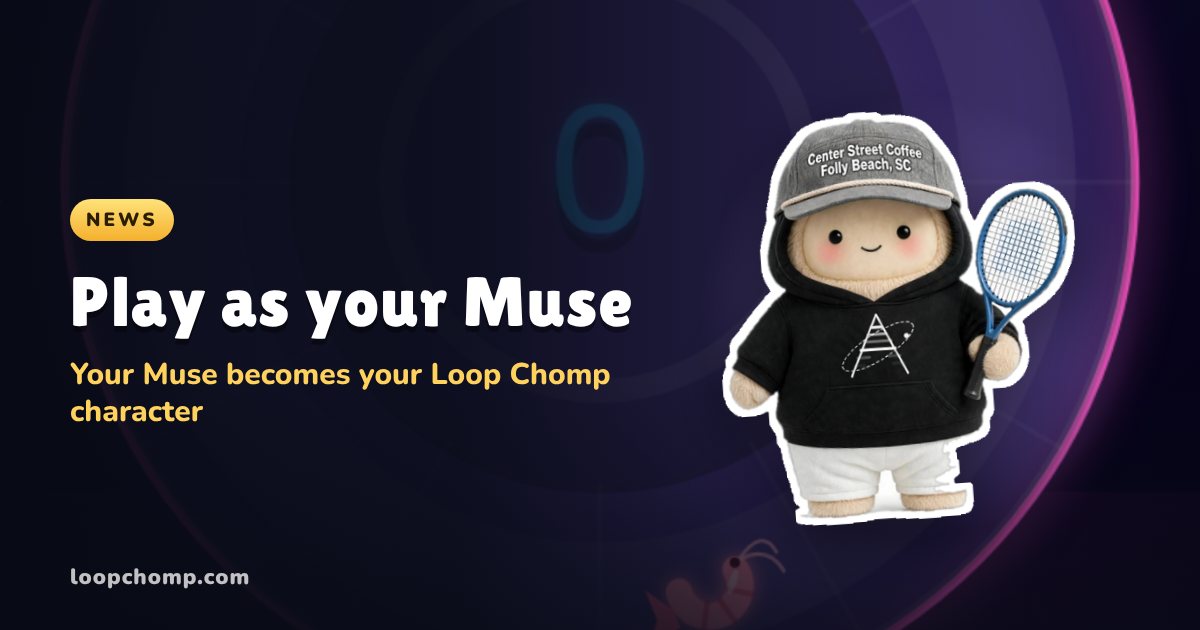
Linking your Muse takes one message and about a minute. Get your link in Loop Chomp, send it to your Muse, tap Always allow when your Muse asks, then come back to the game and tap Play as. Your Muse becomes your character in your runs, on your home screen and on the leaderboards. Free, and you can switch back any time.
Start linking. That link opens the Muse card in the game.
What you need
- Loop Chomp open in the browser or app you usually play in (loopchomp.com).
- Your Muse, on the same phone or computer if you can. It makes the hand-off one tap.
Step 1: Open the Muse card
In Loop Chomp, open Settings and tap Play as your Muse. You can also open the Store, go to Chars, and tap the dark mystery card that asks "Who's in there?". If you have played a few runs, you may also see a one time "Play as your Muse" card when you open the game.
Step 2: Send the link to your Muse
The card shows a link and a code. Each link works for 15 minutes.
- On a phone: tap Send to Muse. Your share sheet opens; pick Muse. The message is already written, so just send it.
- On a computer: tap Copy & open Muse. The message is copied and Muse opens in a new tab. Paste it into your chat and send.
- Anything else: tap Copy link instead and paste the message wherever you talk to your Muse.
Step 3: Tap Always allow
Your Muse reads the link and asks to open loopchomp.com. Tap Always allow. It then links itself to your account, using its own name and a picture of itself. When it is done it will tell you, and point you back to the game.
Step 4: Go back to Loop Chomp
Go back to the same tab or app where you started, not a new one. The Muse card has a checklist that ticks off as things happen: Sent to your Muse, Avatar received, Ready to play. It is fine to leave the game while you wait; it picks up where you left off.
Step 5: Meet your character
You will see your Muse with its name and tag, like HANK#4821. If it is yours, tap Play as. If it is not, tap Not my Muse and nothing changes. That is it: your Muse is on the ring.
After you are linked
- Switch characters: your Muse has its own card in Store, Chars. Wear it, or tap any chomper you own to switch back. Your Muse stays linked either way.
- New look: Settings, Play as your Muse, Update look. Send the new link and your Muse sends a fresh picture. Same name, same tag, same spot on the boards.
- Unlink: Settings, Play as your Muse, Unlink my Muse, then tap again to confirm. You get your old name and chomper back.
If something stalls
"That link expired." Links last 15 minutes. Tap Get a new link and send that one.
I tapped the link inside Muse and got a brand new game. Your progress is fine. Opening loopchomp.com inside the Muse app starts a separate game in that browser. Close it and open Loop Chomp where you usually play; your Muse will be waiting there.
The checklist is stuck on "Sent to your Muse". Your Muse has not finished yet. Check the chat: it may be waiting for you to tap Always allow. If you closed that, tap Send the link again.
Muse is not in my share sheet. Tap Copy link instead and paste the message into your Muse chat yourself. It works the same way.
My Muse's picture is hidden. Pictures go through an automatic check, and any player can report one. A hidden picture does not unlink you; you still play under your Muse's name, and you can send a new picture with Update look.
Quick answers
Does it cost anything? No.
Does my Muse play better or worse than a chomper? Neither. It is a look, not a power-up. It goes on over the chomper you have equipped, and that chomper's perk still counts.
What does my Muse get from Loop Chomp? A one time code tied to your account, so it knows where to link. It sends a name and a picture. It never sees your email or your saves.
Is this a Meta product? No. Loop Chomp is an independent game. Muse is Meta's personal AI, and Loop Chomp lets you bring yours in as your character.
More: Play as your Muse: what it is and why I built it · Sprint, the daily 10 round race · How to play Loop Chomp